
1
Download and extract the extension
Download gleads-1.0.1-chrome.zip. Extract it to a permanent folder named gleads-1.0.1-chrome and do not delete that folder after installation.
📦gleads-1.0.1-chrome.zip
📁gleads-1.0.1-chrome✓
GLeads Chrome extension · v1.0.1
Install GLeads manually in Chrome with the official ZIP package. The guide covers download, extraction, Developer mode, loading the extension, updates, and common installation problems.
Complete these three steps, then pin GLeads to the toolbar and open Google Maps.
Download gleads-1.0.1-chrome.zip. Extract it to a permanent folder named gleads-1.0.1-chrome and do not delete that folder after installation.
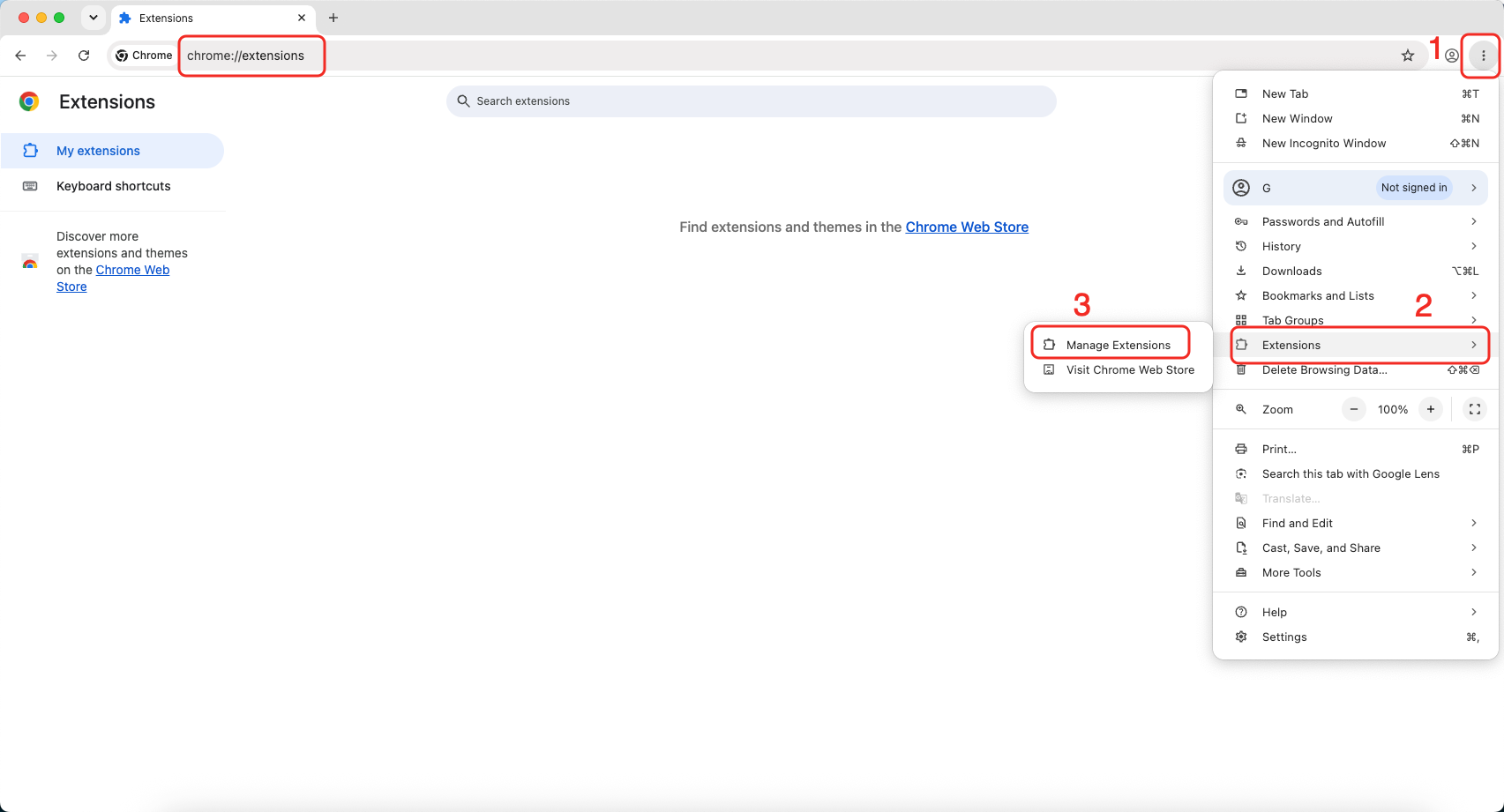

Enter chrome://extensions in the address bar, press Enter, and turn on Developer mode in the upper-right corner.
chrome://extensionsClick Load unpacked and select the folder that contains manifest.json. GLeads will appear in the extension list when installation is complete.
Load unpacked

Installed and enabled
If Chrome cannot load the extension, make sure you selected the extracted folder that directly contains manifest.json—not the ZIP file or an outer folder.
To upgrade from an older version, extract the new package, remove the old GLeads entry from chrome://extensions, and load the new folder.
These checks resolve the most common unpacked-extension problems.
Open the extracted folder and select the level that directly contains manifest.json.
Confirm the extension is enabled, refresh the Google Maps tab, and then open GLeads from the toolbar.
Return the extracted folder to its original location or remove GLeads and load the folder again.
Click the puzzle icon beside the Chrome address bar, then click the pin next to GLeads. Open Google Maps and launch the extension from the toolbar.
GLeads
Search Google Maps by business type and location. Open GLeads, choose the export fields, start collection, and download the results as CSV or XLSX.
Open Google Maps →